
Connection settings
Check how to connect to the instrument and how to adjust the quality of the sound played back after connection.
Tap to display the screen shown below.
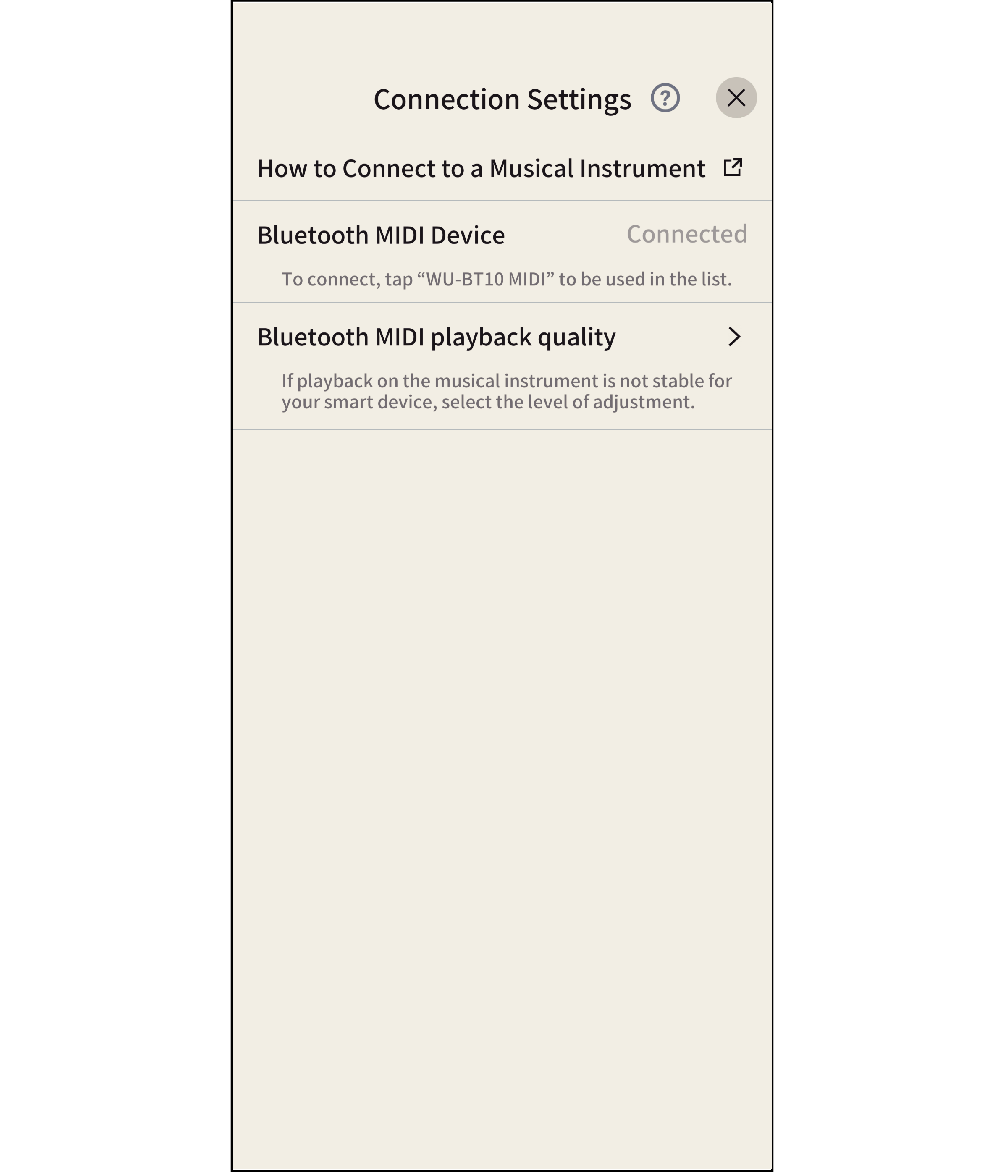
How to Connect to a Musical Instrument
Tap to display the instrument connection method.
Bluetooth MIDI Device
This app allows Bluetooth Low Energy MIDI connection to supported models of CASIO digital pianos and keyboards using the optional Wireless MIDI & Audio Adaptor (Casio WU-BT10). Once connected, you can use the MIDI Player playback while linked to the digital piano and transfer songs to the digital piano.
Preparation
- After connecting the Wireless MIDI & Audio Adaptor (Casio WU-BT10), configure the connection settings.
- Refer to the user manuals for the instrument and the WU-BT10 for how to connect.
-
1.Tap Bluetooth MIDI Device
-
The available Bluetooth MIDI devices appear. To connect, tap the Bluetooth MIDI device to be used in the list. To use the CASIO WU-BT10, tap “WU-BT10 MIDI”.
Below is an example for Android.
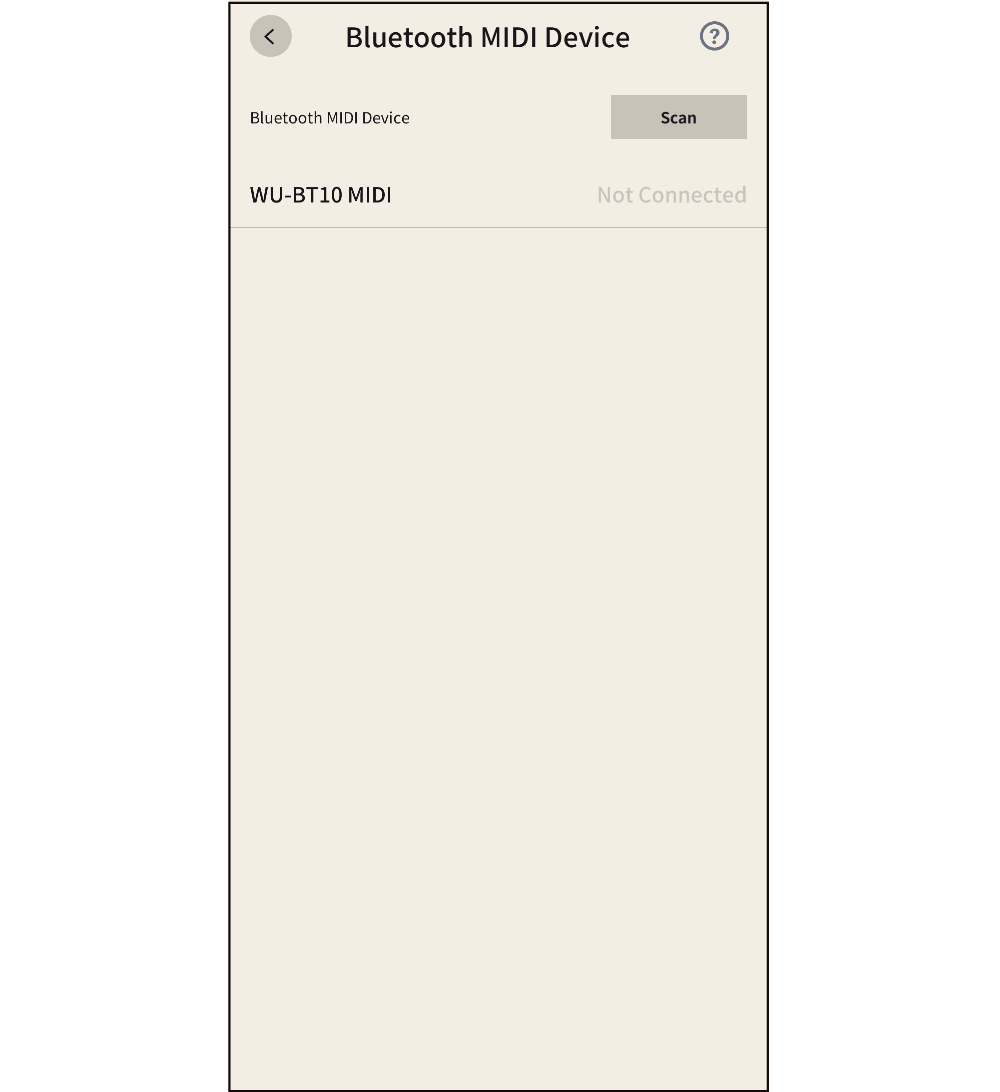
Scan button
Tap to start scanning for connectable Bluetooth MIDI devices. The button displays “Stop” and loading is indicated on the left side of the button.
- To stop scanning, tap the displayed “Stop” button.
Bluetooth MIDI playback quality
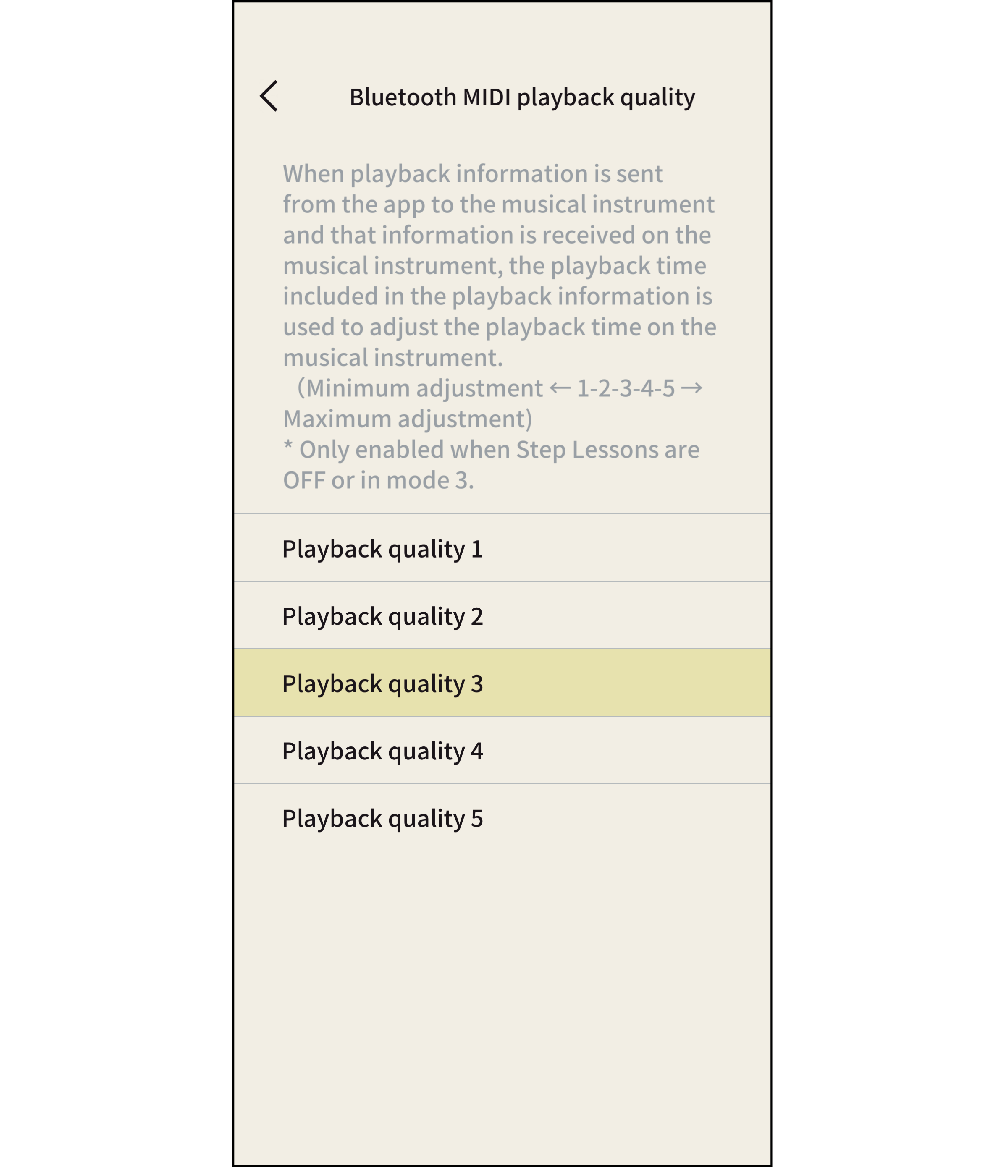
When using the Casio WU-BT10 to connect to a compatible device via Bluetooth Low Energy MIDI, if a song is played from the “Piano Roll” menu, you may experience unstable playback on the instrument depending on the smart device used. If you experience problems, try selecting a higher quality Bluetooth MIDI playback setting.
-
1.Tap Bluetooth MIDI playback quality
-
2.Select the level of correction from the five playback quality settings.
-
 Top of page