
About the home screen
When the app is launched, the following screen will appear.
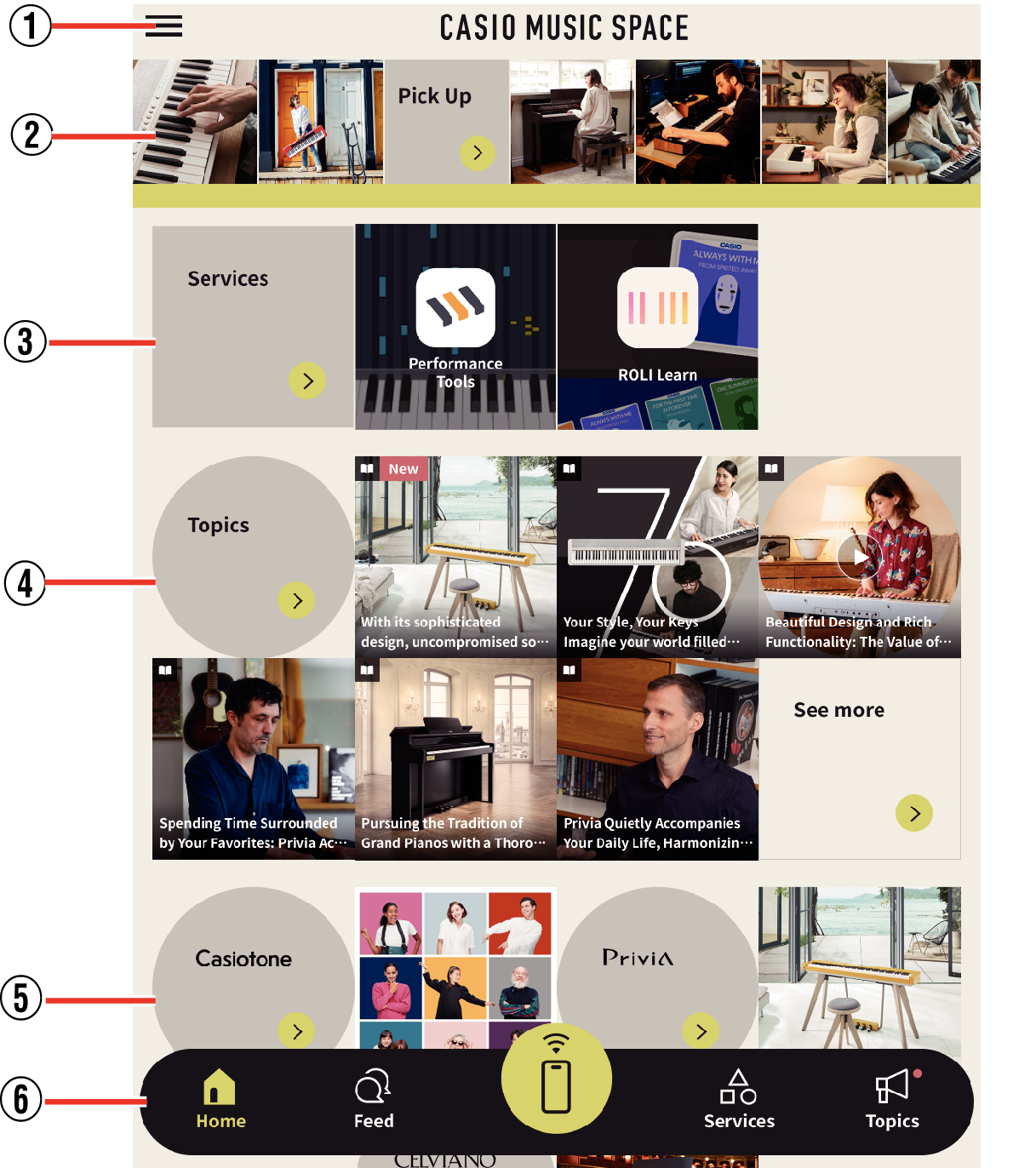
- ①
-
Settings
Tap to display the settings menu. Connect to your instrument, log in and register a new CASIO ID, or view manuals and basic information about the app.
- ②
-
Pick Up
Tap the arrow in the “Pick Up” display to see videos and photos (images) related to Casio electronic musical instruments posted on Instagram.
- Tapping on a scrolling image will not display that video or photo (image).
- ③
-
Services
If the app is installed, the following contents will be displayed.
Performance Tools:
Tap to display the Performance Tools menu and make selections.
- “Services” You can also display the Performance Tools from the Services screen that appears when you tap the arrow.
- ④
-
Topics
“Topics” Tap the arrow to see news and columns related to Casio electronic musical instruments.
- Tapping the thumbnail image will link to an external site.
- ⑤
-
Official website
Tap to visit to each brand’s external site.
- ⑥
-
Navigation bar
Home:
Tap to display the home screen.
Feed:
Tap to display the social media screen.
Remote Controller icon:
When tapped while connected to a piano-compatible model, the top screen of Performance Tools from Remote Controller will be displayed.
- When the instrument itself is connected to the smart device, the Remote Controller icon will be highlighted in black.
- If your instrument is not connected or if the model does not support Remote Controller, a connection error screen will appear.
Services:
The Services screen will appear.
Topics:
The Topics screen will appear.
- When new content has been added since last viewing, a red icon will appear on the upper right corner.
 Top of page